Screenshots
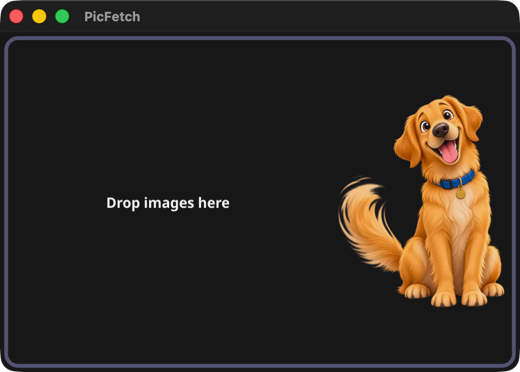
Drop images onto the window to get started
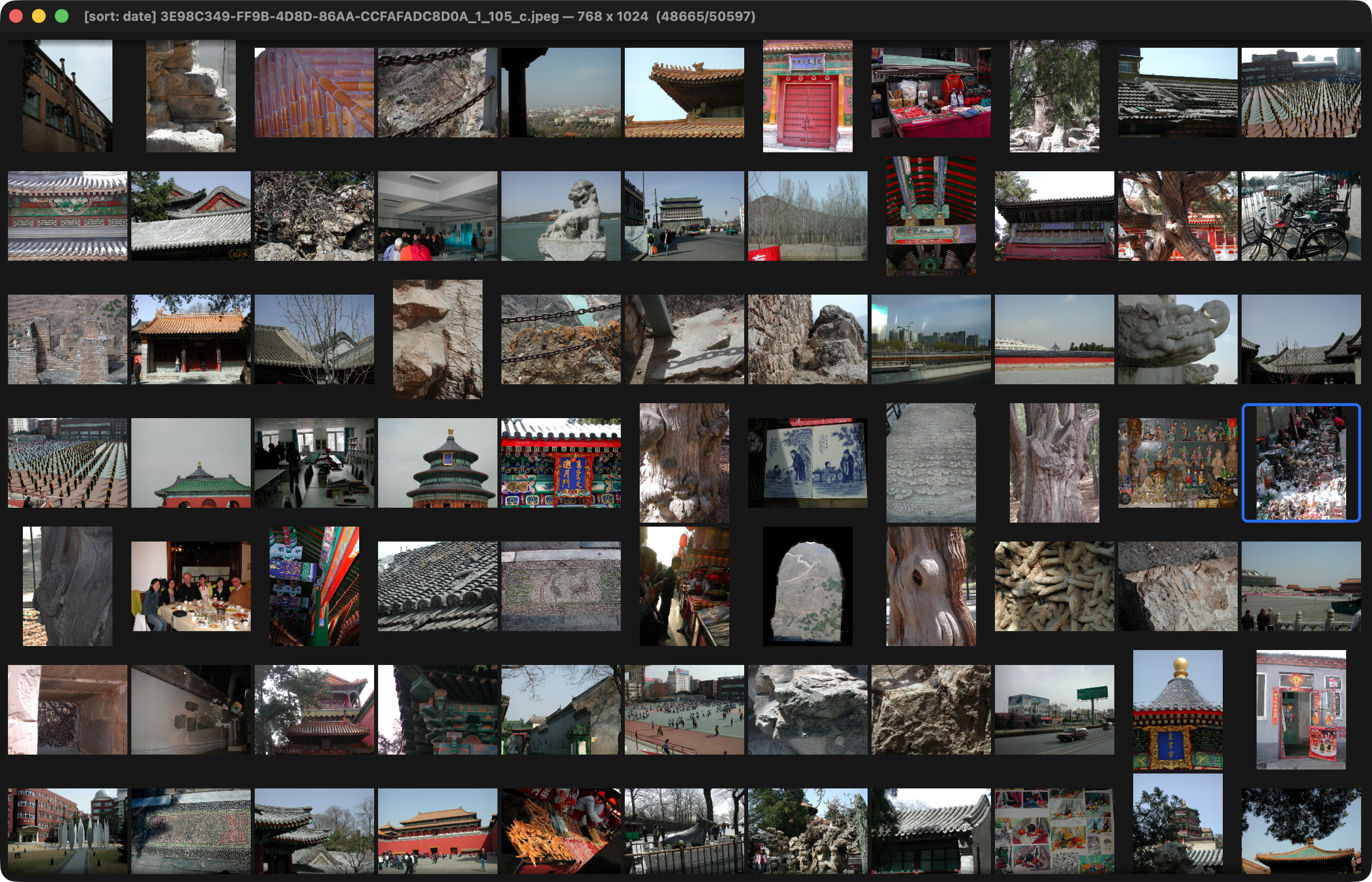
The thumbnail grid for finding an image by sight
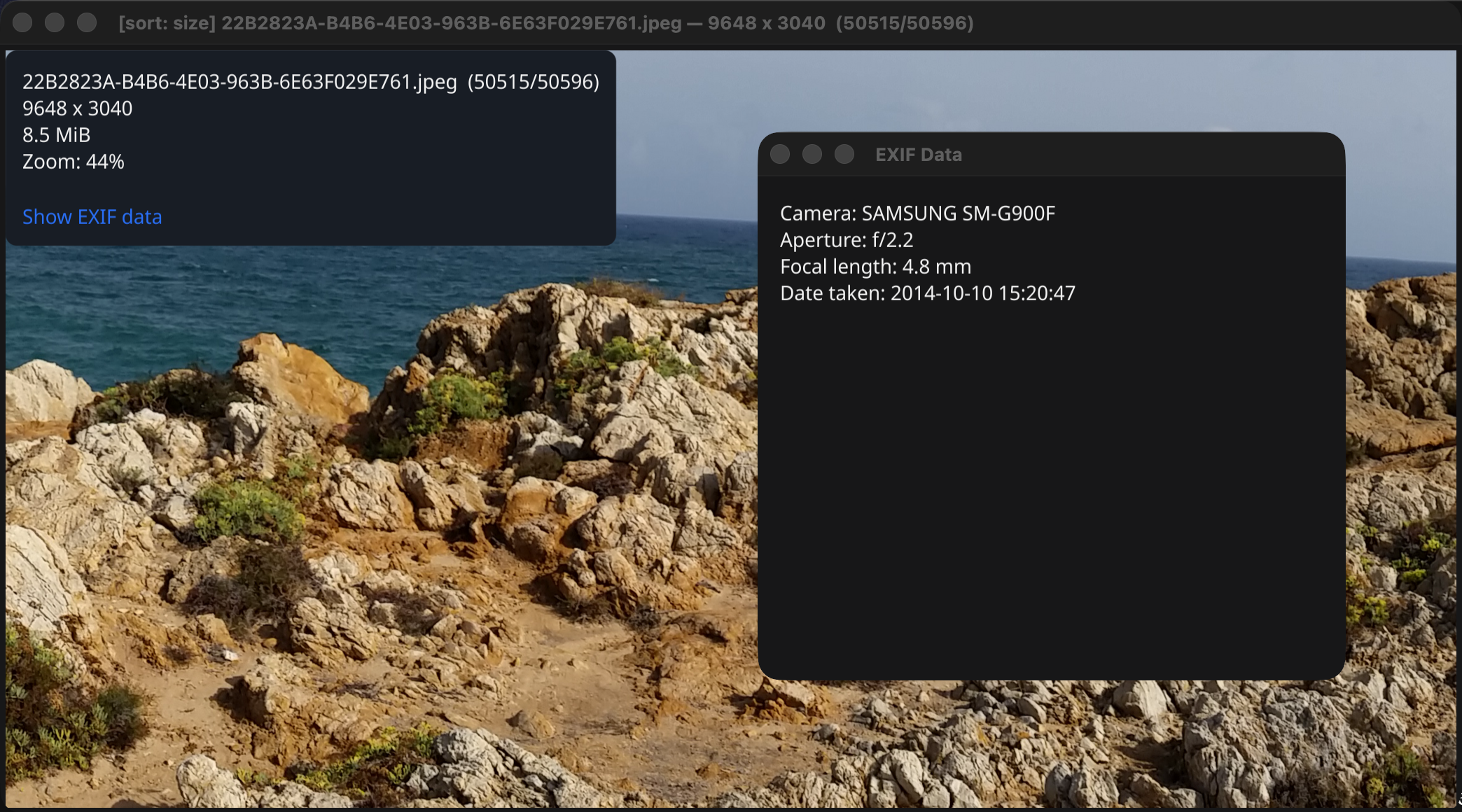
Inspect camera settings and the photo's recorded location
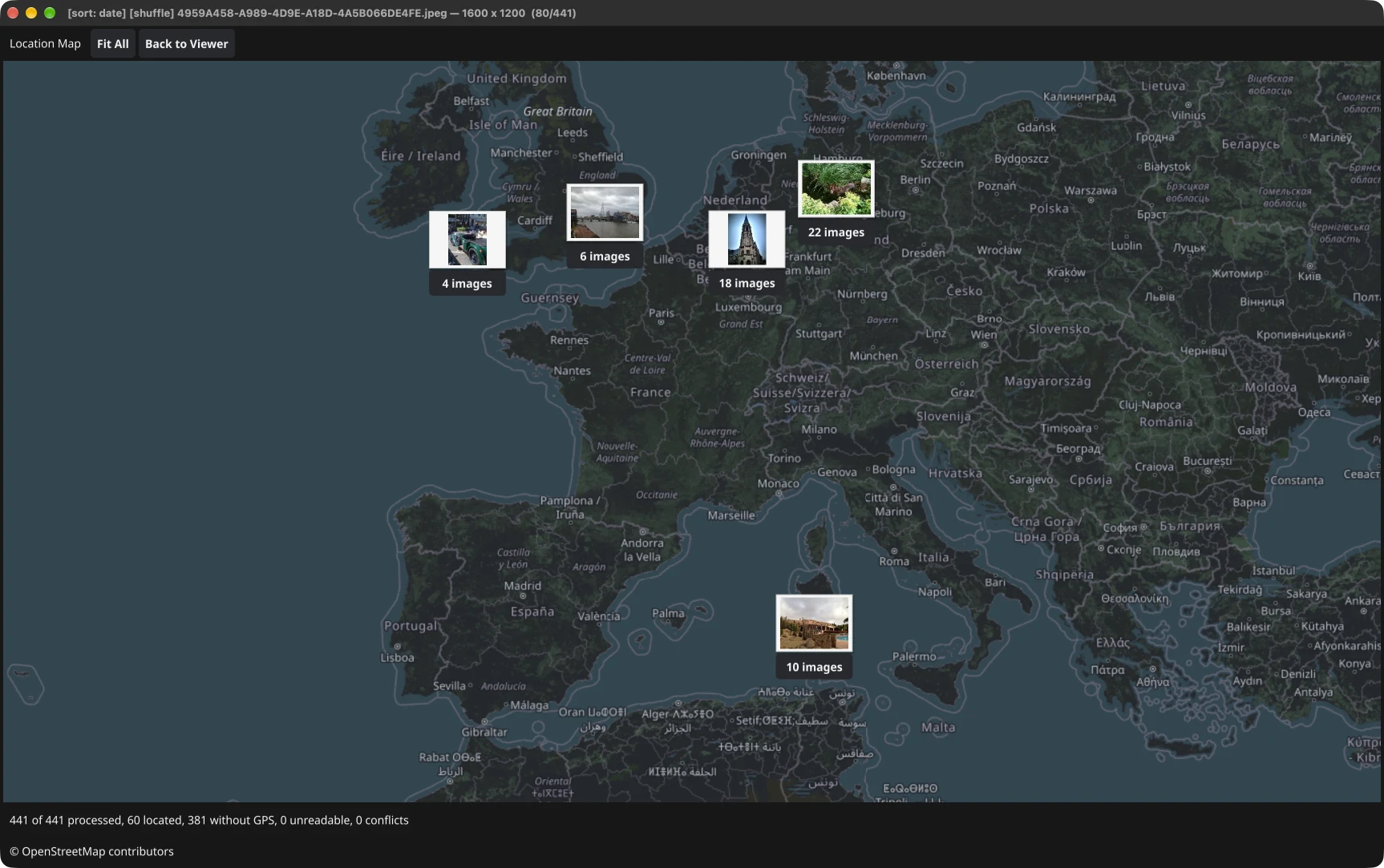
Browse GPS-tagged photos by place with Location Map
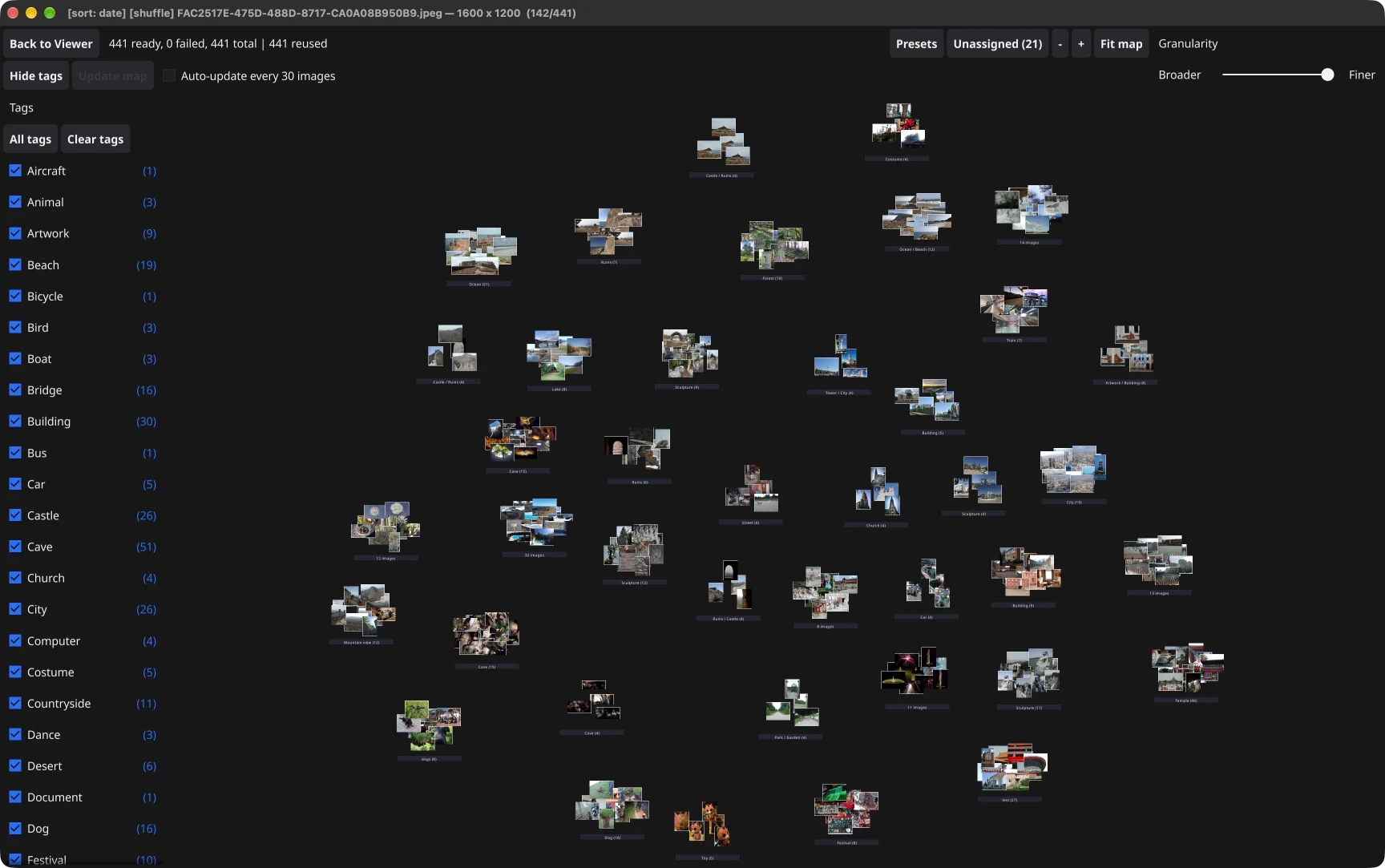
Discover related photos in Similarity Explorer
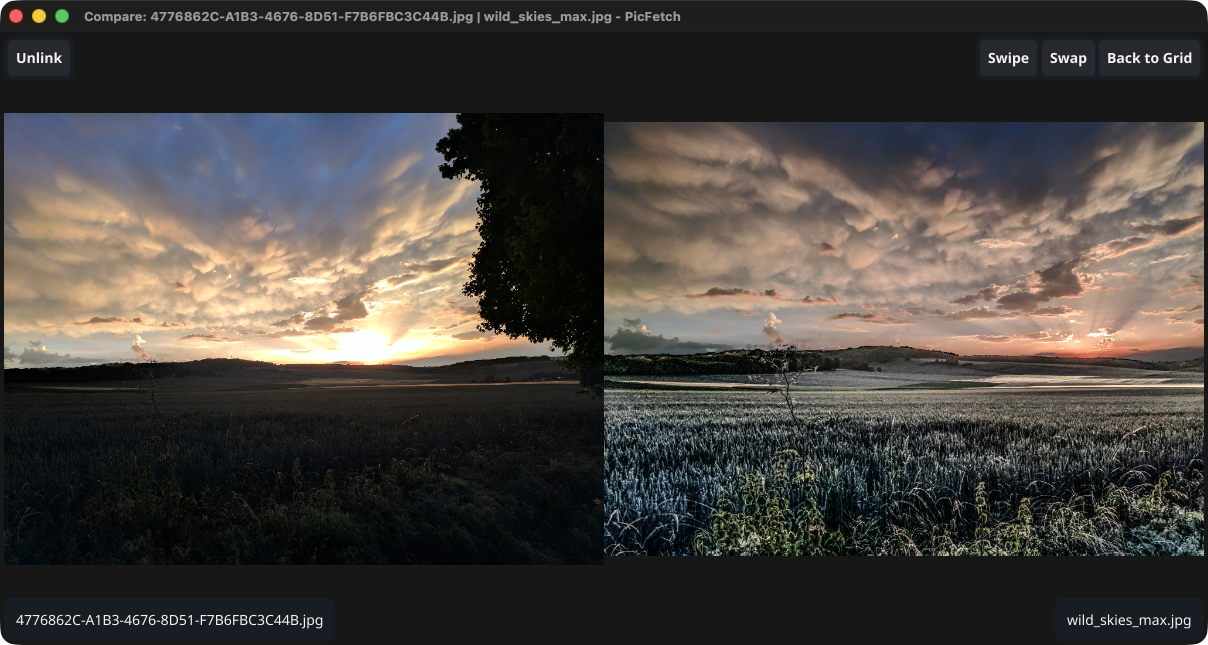
Compare two photos side by side with linked zoom and pan
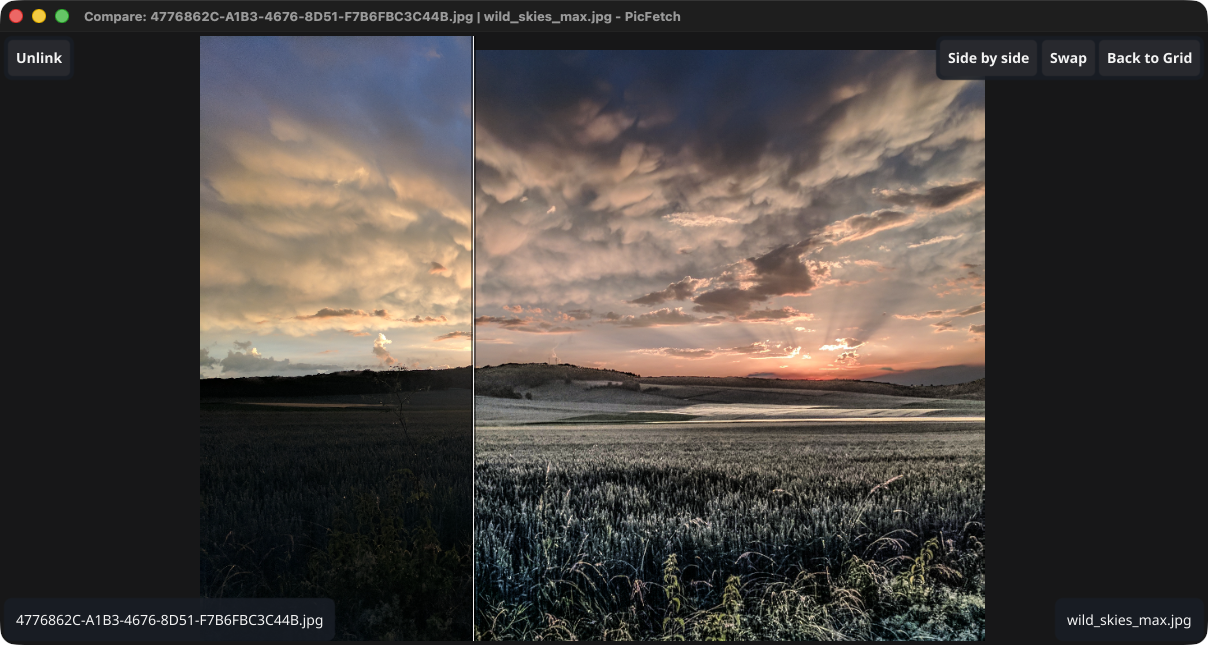
Slide the divider to reveal differences between images
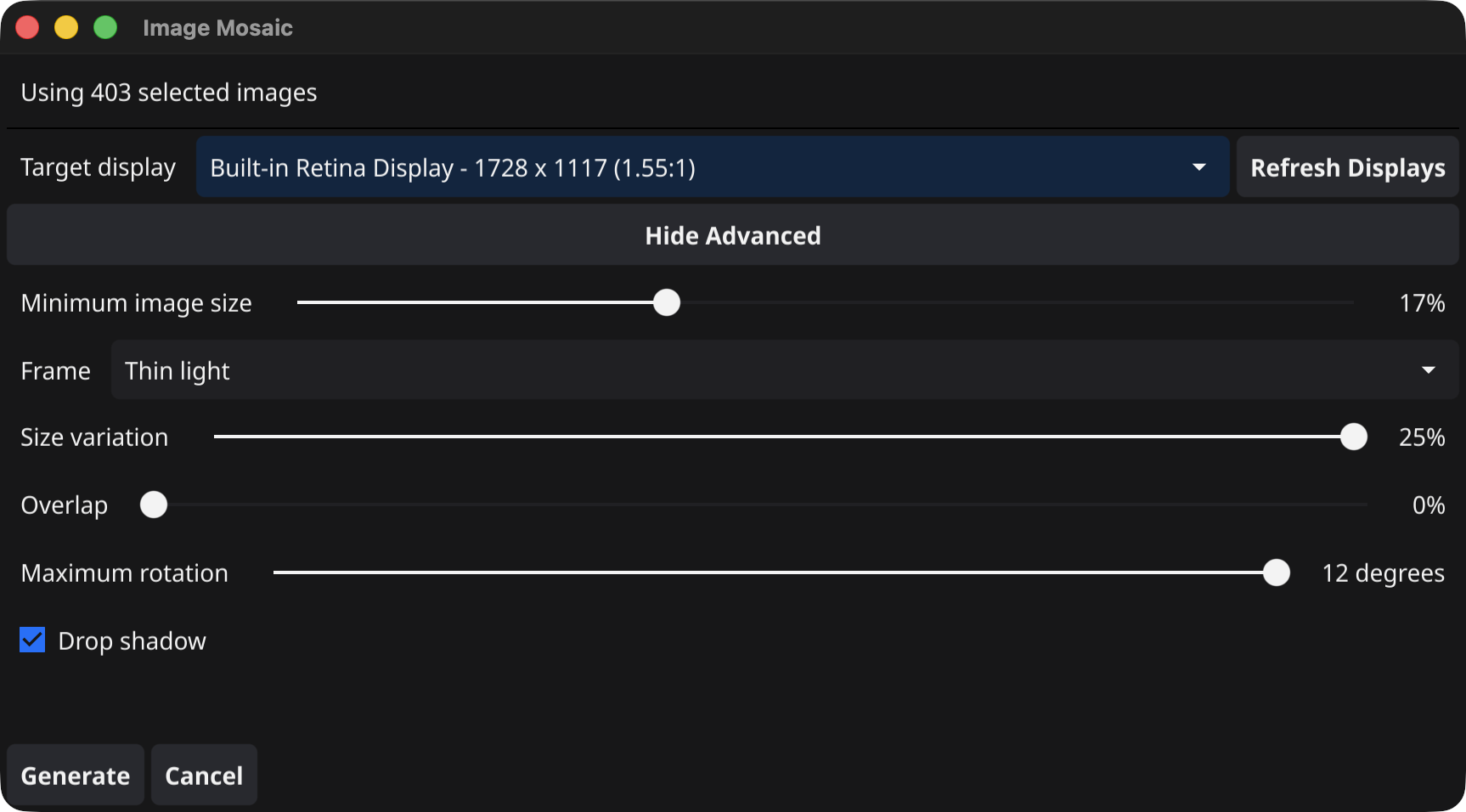
Choose a display and tune the look of the mosaic
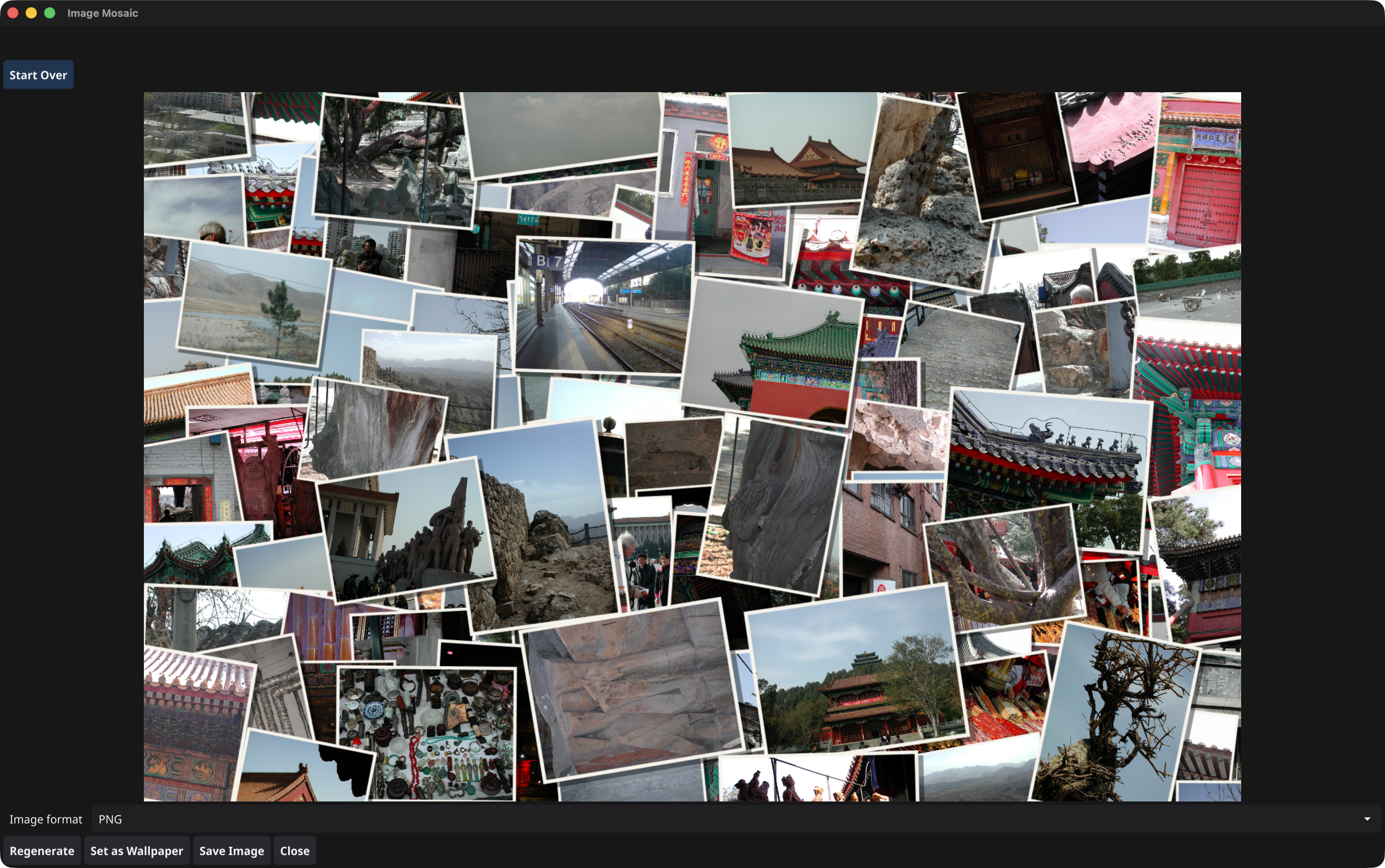
Generate a display-sized mosaic, then save it or set it as wallpaper
Features
Browse photos by location
Shift+L opens Location Map for your loaded collection. Explore recorded GPS locations, open nearby photo groups and return to the same map position. Pan, zoom and navigate by keyboard, with light and dark map styles. OpenStreetMap tiles need an internet connection.
Similarity Explorer
Shift+S groups visually related photos into stacks. Filter by 75 subjects and scenes, adjust the grouping and save reusable presets. Available on supported macOS, Linux and Windows 11 systems. After an optional first-use model download, image analysis runs locally and works offline — your images are never uploaded.
Find more photos like this
Choose a reference image and press Cmd/Ctrl+Shift+L to find up to 30 similar pictures in your loaded collection. Browse the matches, compare your picks and save selected results to Favorites. Uses the same local analysis as Similarity Explorer.
Compare every detail
Compare two images side by side or overlay them with a movable swipe divider. Link zoom and pan to inspect the same detail in both, adjust each image independently and swap sides.
Copy just the part you need
Opt/Alt+Shift+C starts Copy Selection. Draw a rectangle, move or resize it, then copy that image region as PNG pixels at its own resolution. Paste it into another app without changing the original image.
Export a copy to share
Export PNG or JPEG copies with an optional longest-edge limit of 2400, 1600 or 1000 pixels. Leave camera, capture-date and GPS metadata out of JPEG copies while keeping the original untouched.
Picture-frame mode
P turns your collection into a full-screen slideshow with crossfades. Adjust the timing with the up and down arrows, or use Shift+P to shuffle the order.
Drop almost anything
JPEG, PNG, GIF, WebP, BMP, TIFF, ICO, XPM, SVG, AVIF and camera RAW (embedded JPEG preview). HEIC/HEIF opens with a compatible system decoder; Settings includes a support check and installation instructions. AVIF support is built in.
Keyboard browsing
Step through a set with the arrow keys (wrapping at both ends), or jump straight to the ends with Home and End.
Thumbnail grid
G opens a full-window grid for finding an image by sight. Thumbnails load lazily, so a folder of several thousand files stays responsive.
Mosaic generator
Turn your Grid View selection — or the current filtered grid when nothing is selected — into a display-sized image mosaic. Choose Random or Shelf layout, tune frames, overlap and shadows, then regenerate, save it as PNG or JPEG, or set it as wallpaper.
Zoom and pan
+ − 1 0, or scroll to zoom at the cursor. Click-drag or Shift+scroll to pan once zoomed in.
Animated GIFs
Played back frame by frame at their encoded speed, composited correctly per frame so partial updates never leave stale pixels.
EXIF aware
JPEGs auto-rotate to their orientation tag, and E shows camera, lens, exposure, aperture, ISO, capture date and coordinates — plus a collapsible OpenStreetMap view pinned at the spot a GPS-tagged photo was taken, collapsed until you ask for it.
Sorting that makes sense
Natural name order by default, so
IMG_2comes beforeIMG_10. S cycles through capture date, modified time, size and raw drop order.Folders and merging
Drop folders to scan them recursively, with a live counter for large trees. M makes further drops add to the set instead of replacing it.
Named favorites
Save the current file list as a collection and reopen it from the Favorites menu after a restart. The first ten are one shortcut away with Cmd/Ctrl+1–9 and Cmd/Ctrl+0.
Hide duplicate images
Browse large quantities of images with ease by hiding duplicates and filtering out noise. d and Shift+D (to show duplicate variants).
Basic usage and image browsing
Compare images with ease
Download
Pre-built binaries, no Go toolchain required — the links below always fetch the newest release. Prefer to build from source? The build instructions are in the repository.
macOS

Windows

Linux
The App Store version is available worldwide except in France, due to French encryption regulations.
macOS: “app is damaged” warning
This warning applies only to downloads from GitHub. The Mac App Store version does not require these steps. The GitHub release build isn’t signed with an Apple Developer ID or notarized, so Gatekeeper quarantines it after download and claims it’s damaged. It isn’t — to open it anyway, either right-click (Control-click) PicFetch.app and choose Open, confirming the dialog that appears, or run xattr -cr "/path/to/PicFetch.app" in Terminal to clear the quarantine flag and then open it normally.